ACT Calculators: Expert Tips
Heads up: some of the links below are affiliate links, so we may earn a small commission if you buy through them. It never costs you anything extra.
A quick tip for the ACT: the math section allows a calculator, but not one with a built-in CAS. So stick to a test-legal model and practice with it beforehand. The picks below are all ACT-approved, from the classroom favorite to a budget option.
At a glance
| Calculator | Best for | Type | Screen | Approved | |
|---|---|---|---|---|---|
| TI-84 Plus CE | Best overall | Graphing | Color | SAT, PSAT, ACT, AP | Check price → |
| TI-Nspire CX II | Most powerful | Graphing | Color | SAT, PSAT, ACT, AP | Check price → |
| Casio fx-CG50 PRIZM | Best color for less | Graphing | Color | SAT, ACT, AP | Check price → |
| Casio fx-9750GIII | Best budget graphing | Graphing | Black & white | SAT, ACT, AP | Check price → |
| TI-30XS MultiView | Best budget scientific | Scientific | 4-line | SAT, ACT | Check price → |
1. TI-84 Plus CE – Best overall
Few calculators are as safe a bet as the TI-84 Plus CE. Because nearly every math class is built around it, every button press matches what your teacher demonstrates, and it stays approved across the SAT, PSAT, ACT, and AP tests.
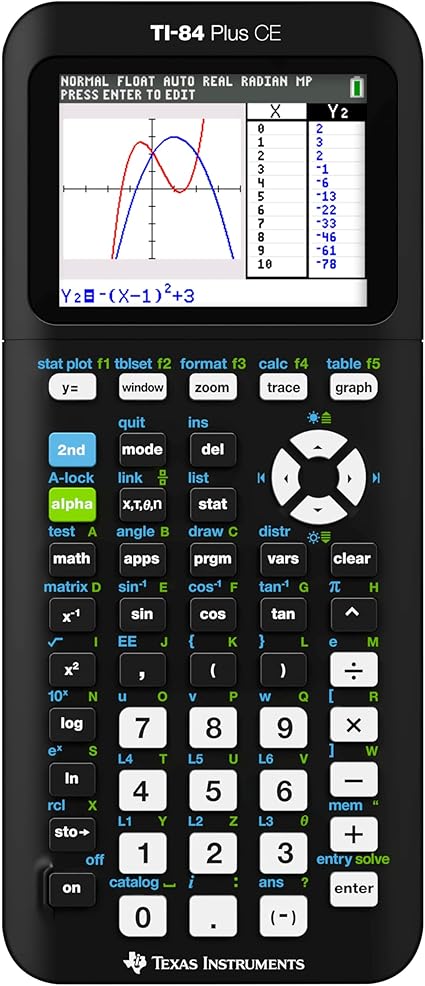
What’s good:
- Matches classroom instruction
- Approved on all four big exams
- Familiar, unchanging layout
- Tons of online tutorials
Worth knowing:
- Costs more than Casio rivals
2. TI-Nspire CX II – Most powerful
The TI-Nspire CX II pushes the limits of what an exam-approved calculator can do. Spreadsheets, programmable Python, and side-by-side graph-and-table views set it apart, and it remains cleared for the SAT, PSAT, and ACT.

What’s good:
- Top-tier capability
- Programmable in Python
- Side-by-side views
- Cleared for SAT, PSAT, ACT
Worth knowing:
- Longer to learn
- Expensive
3. Casio fx-CG50 PRIZM – Best color for less
If you want graphing power without the Texas Instruments price, the fx-CG50 PRIZM is the smart buy. Its large color screen, intuitive menus, and 3D plots make it a pleasure to use, and it’s cleared for the SAT, ACT, and AP exams.

What’s good:
- Graphing power for less
- Intuitive menus
- 3D plotting
- Cleared for SAT, ACT, AP
Worth knowing:
- Less community support
- Battery-powered, not rechargeable
4. Casio fx-9750GIII – Best budget graphing
Don’t let the low price fool you, the fx-9750GIII handles real graphing. Approved for the SAT, ACT, and AP exams and Python-ready, it does what a high-school course needs without the color-screen premium.

What’s good:
- More capable than its price
- SAT, ACT, AP approved
- Python-ready
- No color-screen premium
Worth knowing:
- Black-and-white only
- Less online support
5. TI-30XS MultiView – Best budget scientific
The TI-30XS MultiView nails the basics for less. Four lines of textbook-style math, solar plus battery power, and SAT and ACT approval make it the default scientific for most students.

What’s good:
- Nails the basics
- Solar plus battery
- Textbook-style four lines
- Default scientific choice
Worth knowing:
- No graphing
- Not enough for higher courses
How to choose
- Check the rules first. Every model here is widely approved, but policies change, so confirm your class or test allows it.
- Graphing vs scientific. Get a graphing model only if your course actually needs graphs; otherwise a scientific calculator is lighter and cheaper.
- Stick with one. The best calculator is the one you know well, so practice on the same model you’ll use on test day.
- Screen and battery. Color is easier to read; a rechargeable battery means no dead AAAs mid-exam.
Any of these will do the job for the ACT. If you want a single safe pick, the TI-84 Plus CE is the dependable all-rounder, and the Casio fx-9750GIII is the one to grab when money is tight. Whatever you choose, get comfortable with it before it counts.
How to use the ACT Calculators: Expert Tips for homework
The ACT Calculators: Expert Tips is most useful when you treat it as a learning check, not just a shortcut to the final answer. Start by copying the original problem carefully, including signs, exponents, decimal points, fractions, parentheses, and units. Then enter the values in the same order the problem gives them. A small typing change can completely change the result, especially in algebra, statistics, geometry, and probability problems.
Before you press the button to calculate, make a quick estimate or prediction. The estimate does not need to be exact. Its job is to help you notice impossible answers. If a distance becomes negative, a probability is bigger than 1, an angle looks too large, or a decimal point seems misplaced, go back and check the input before trusting the final result.
Before you enter the problem
- Rewrite the problem in a clean line so every value is easy to see.
- Use parentheses around grouped expressions, especially in fractions and exponents.
- Keep units with the numbers while you work, even if the calculator only asks for the numbers.
- Check whether the problem wants an exact value, a decimal approximation, or a rounded answer.
- Look for restrictions such as positive values only, a chosen interval, or a required domain.
How to read the result
After the calculator gives a result, read more than the final line. If steps, tables, graphs, or intermediate values are shown, use them to understand how the answer was built. That is especially important when you are studying for a quiz or test, because teachers often give more credit for a correct process than for an unsupported number.
Try to identify the main idea behind the result. For example, ask yourself which formula was used, which operation changed the expression, which value controlled the graph, or which assumption made the answer possible. When you can explain that idea in your own words, the tool has helped you learn the skill instead of only checking one problem.
Common mistakes to avoid
| Mistake | How to catch it |
|---|---|
| Typing the wrong sign | Compare each negative sign, subtraction symbol, and exponent with the original problem. |
| Rounding too early | Keep extra decimal places until the final step, then round only as directed. |
| Forgetting parentheses | Group numerators, denominators, powers, and multi-step expressions before calculating. |
| Ignoring units | Write the unit next to the final answer so the result has meaning. |
| Trusting an unreasonable result | Use estimation, a graph, or substitution to check whether the answer makes sense. |
Turn the answer into practice
One good way to study is to solve the problem by hand first, then use the ACT Calculators: Expert Tips to check your work. If your answer is wrong, do not erase everything immediately. Find the first line where your work stops matching the calculator’s logic. That line is usually where the real misunderstanding happened.
- Work the problem on paper and circle your final answer.
- Use the calculator to check the result.
- If the answers match, write one sentence explaining the method.
- If they do not match, compare each step until you find the first difference.
- Redo a similar problem without the tool to make sure the correction sticks.
When to use a calculator and when to work by hand
Use the ACT Calculators: Expert Tips when you want to check a long calculation, explore a pattern, test a graph, or confirm a result after practicing. Work by hand when the assignment asks for steps, when you are learning a new method, or when the test will not allow a digital tool. The strongest students use both: hand work to build understanding and calculators to check accuracy.
If you are preparing for a timed test, practice some problems without the tool and some with it. That balance helps you build speed while still understanding the math. Over time, the goal is to need the calculator less often for routine steps and use it more strategically for checking, exploring, and confirming your reasoning.
Quick accuracy checklist
Before you leave the page, use the ACT Calculators: Expert Tips result to answer three quick questions: What was the input? What rule, formula, or method connects the input to the result? What would change if one number in the problem changed? These questions turn a single calculator answer into a reusable math skill.
For homework, write the original problem, the calculator’s result, and one short explanation of the method in your notebook. For test review, cover the result and try to reproduce the setup on your own. If you can set up a similar problem without looking back at the calculator, you are much closer to owning the skill.
Official source: the structure of the ACT, the sections it covers and the time allowed for each are published by ACT, Inc., the organization that writes and administers the test, at act.org.

Related to This Article
More math articles
- Using a Comparison Matrix
- Ideological groups
- Free Grade 4 English Worksheets for Missouri Students
- The Best Grade 7 ELA Practice Tests for Oregon Students
- Free Grade 5 English Worksheets for Arkansas Students
- The Ultimate TSI Math Course (+FREE Worksheets & Tests)
- Sound bites
- The Best Grade 5 Math Book for Mississippi Students
- Dissenting opinions
- A Comprehensive Collection of Free SHSAT Math Practice Tests









What people say about "ACT Calculators: Expert Tips"?
No one replied yet.